
Appearance
Skills System BitVector-specific
TIP
This article is marked as "BitVector Specific" because the instructions are tailored to using the Skills system through the BitVector ecosystem. However, Skills are a Graydient-wide feature! If you would like more information on using Skills in Graydient's native ecosystem, please see their article over here.
What are Skills?
Skills are an easy way to get started with generating content through BitVector & Graydient! Expand the below for a brief explanation of what they are, but the quick explanation is that Skills are used to generate something quickly without needing to worry about settings or refining prompts.
Skills Explained
Graydient has a ton of models and workflows to use in order to generate content, but when you're just getting started, going through these to try to figure out what to generate with can be intimidating! The Skills system was created to take the guess work and potential choice paralysis out of the equation. It's simple, you type in a vague (or detailed, up to you!) of what you want to see, and the Skills system will try to find the best settings to match what you're looking for. It'll even expand your idea into a prompt that works well too!
For advanced users, they can also be used as automated macros of sorts. If you have a set of settings and guidelines that you like to use, you can encode it into a Skill that you can easily run at anytime.
Anyone can create a Skill! For details on creating a Skill, please see the above link to Graydient's Skills article. We don't have a way to create Skills in BitVector just yet, but we're working on it! Note that creating a Skill does require a bit of knowledge on concepts/models, workflows, LoRAs, etc. So if you are just getting started, its best to give it a little bit of time so that you have a better idea of what's involved - that's not a hard requirement though, so if you really want to create a Skill on day one, you certainly can!
Maximum Entropy!
The Skills system is run via an LLM based system. This means that it may not always be perfect. As the Skills system gets more use, and more people create public skills, it will continue to get better over time!
Skills are supported across the BitVector ecosystem, so this means you can use them in both Discord and on the web via Spyglass! We'll include instructions for both in just a moment!
Notes & Remarks
- Skills are supposed to let you provide your own starting image/video to be used for Skills that can transform existing input media. However, as of right now, the API that we're supposed to use for this is a bit broken. As such, you can't provide external input media just yet.
- You can however reference your last render that was made via the Skills system. For example, you can just prompt "Upscale this video" if you last rendered a video, or "Edit this last image to ..." if you last rendered an image. The Skills system should automatically then pick that up!
- A lot of Skills are present for creating images, but at the current time there are not too many Skills for creating videos. This can create some bias in the system to prefer making images. For creating a video, try starting your request with "A video of..."
Using Skills in Discord
Universal Commands & Content Safety
Note: The following commands mentioned below to use Skills are universal, that means you can run them in either the BitVector Discord Server, your own Server, or even directly in a DM with @Vector. Keep in mind, the generation & result will be posted wherever you run the command.
If you intend to use a Skill to generate NSFW content, be sure that this is done in either:
- A DM with @Vector (NSFW content is always allowed in a private DM with @Vector)
- The
#nsfw-renderschannel in the BitVector Discord Server - For any other Servers, ensure that you are running in a channel that is marked as "Age Restricted" (even if its your own Server as per Discord's ToS), and that the content is allowed by the Admin/Moderation team of said Server.
Generating with a Skill
To use the Skills system in Discord, the /skill command will be your best friend! Let's start with what you're probably here for, which is generating something with a Skill!
To generate a Render via a Skill, you'll use the /skill run command. This command works in two ways:
- Given just a prompt, the system will automatically choose a Skill for you that best suits your request
- Alternatively, if you know that there is a specific skill you want to run, you can select it in the
skillparameter and it will directly use that Skill. This is optional!
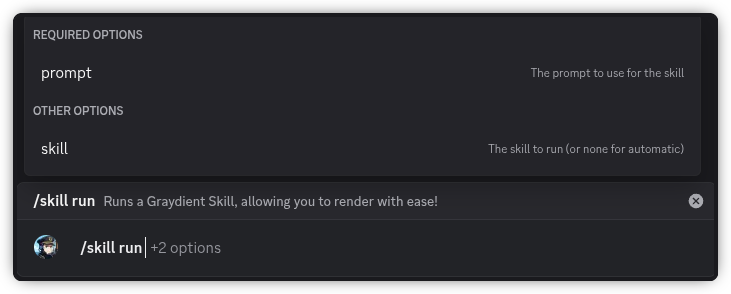
You can then enter what you wish to see in the prompt parameter, then optionally you can tab over (press the tab key or click the "+Option" at the end of the textbox) to the skill parameter on desktop. On mobile, it should just show you all the parameters available as a bar on top of the textbox, so you'd tap skill. In either case, it should then show you a list of available Skills (up to 25 of them, as per Discord's limit) and if you know the "slug" (the ID, like chroma1-flash for example) of a skill you can also type it in the field and the results will filter down to match what you're typing.
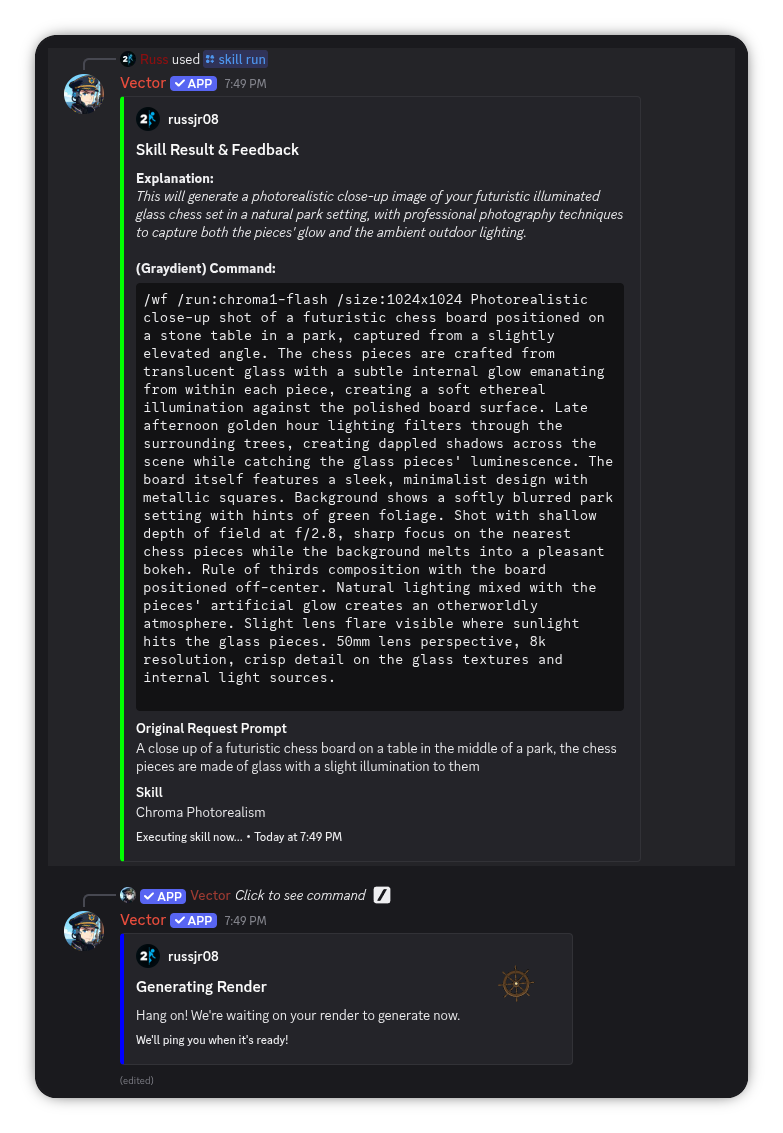
After you've sent the command, Vector will then fire off the request for you, and once it comes back the results of the Skill will be displayed, and it will also immediately fire off a generation request using the prompt command that it came back with.
Viewing Skill Details
We do not currently have a general "List Skills" command in Discord yet (we recommend you checkout Spyglass, as it has a Skill list along with a Model & Workflow browser), however if you see a Skill that you want to know more about, you can use the /skill show command to bring up details:
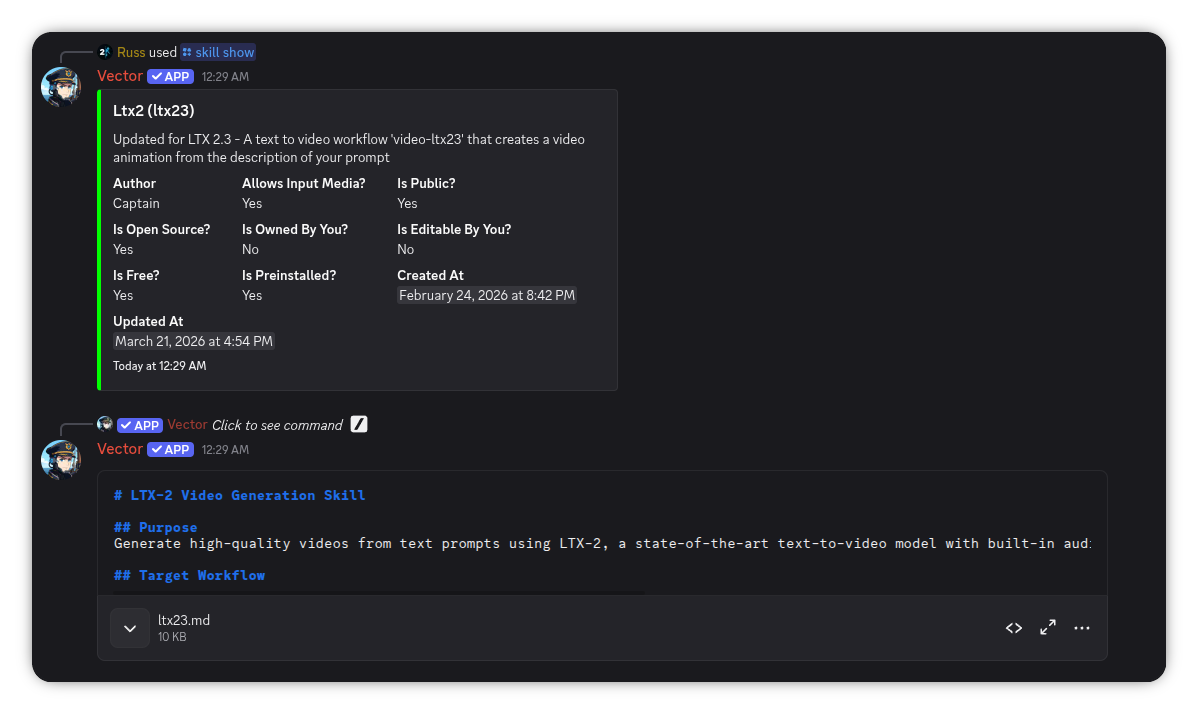
As you can see above, if you have access to the Skill's "Source" (either because it is Open Source, or because you own the Skill), you'll also see a copy of it's template as a secondary message when running the /skill show command.
This is a great way to discover how Skills are made, and you can then use this to make your own Skills!
Using Skills in Spyglass
Generating with a Skill
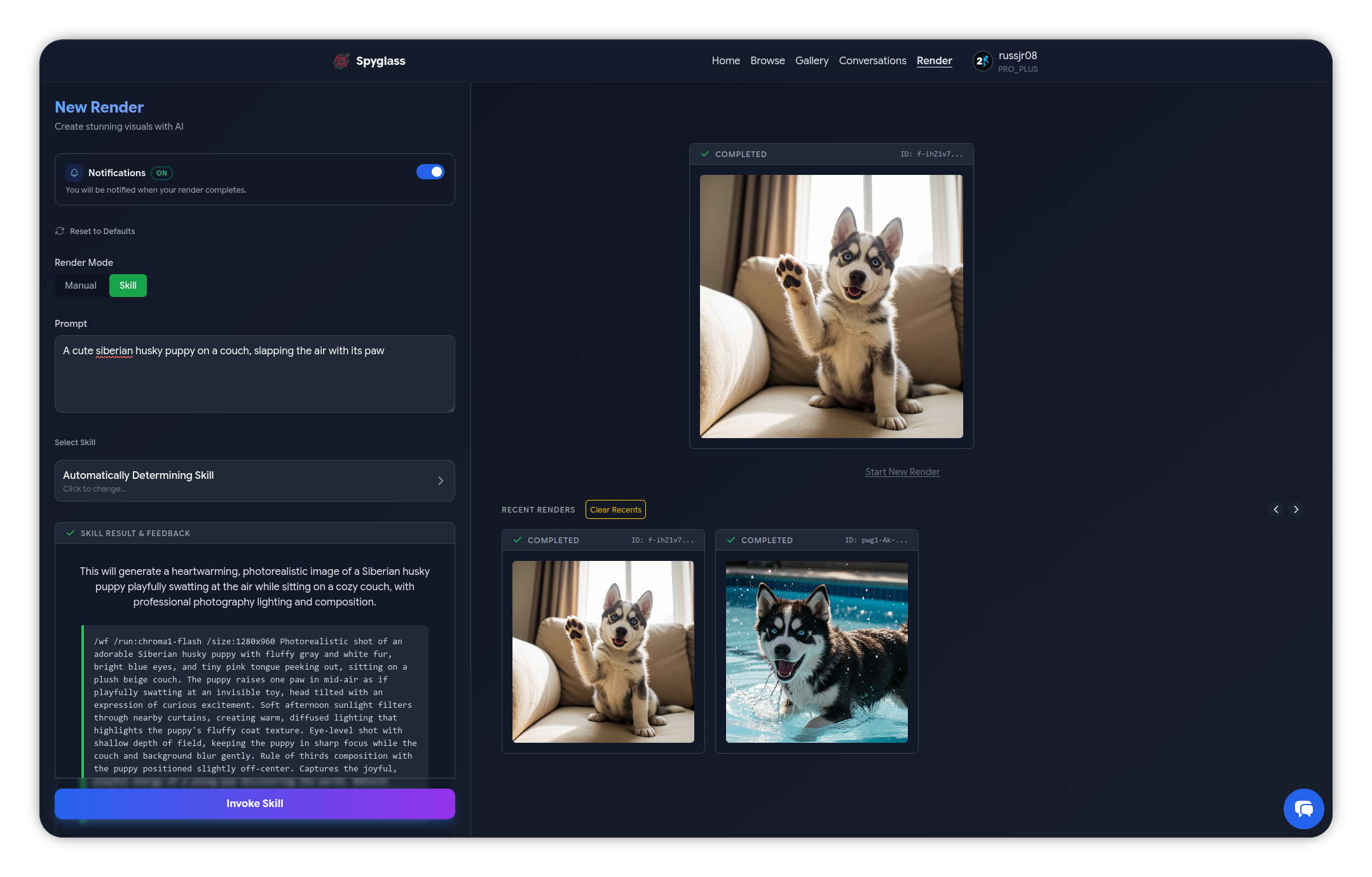
To generate a Render using a Skill, first start by heading over to the Render tab, you will then see a toggle near the top of the page that says Render Mode. Click Skill to switch the page to show you the process of using a Skill. It'll remember this setting even if you leave the page (or even close Spyglass completely) and come back, but you can change it back to Manual mode at any time if you want to go back to classic-style rendering with a specific Model / Workflow and fine-tuning the specific settings.
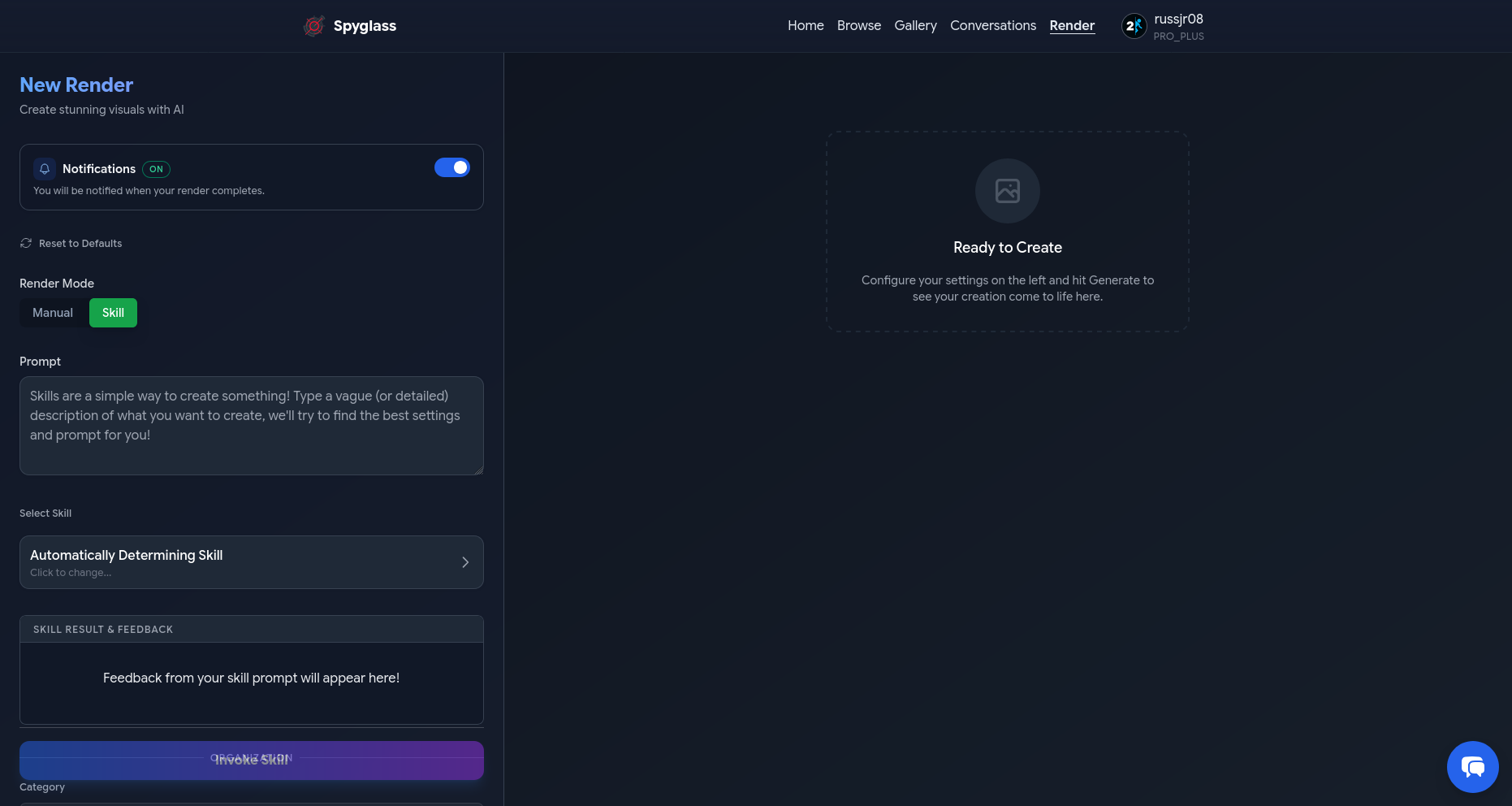
From here, in the Prompt field, as it mentions just type in the description of what you're looking to generate. By default, it will use the "Auto" mode where the system will automatically pick a Skill for you that seems like it best suits your description. However, you can click the Automatically Determining Skill button below the prompt area to select a specific skill.
After you've entered your prompt, and optionally selected a Skill (if you have a specific one in mind), click Invoke Skill at the bottom of the page so that the system generates a prompt & command for you.
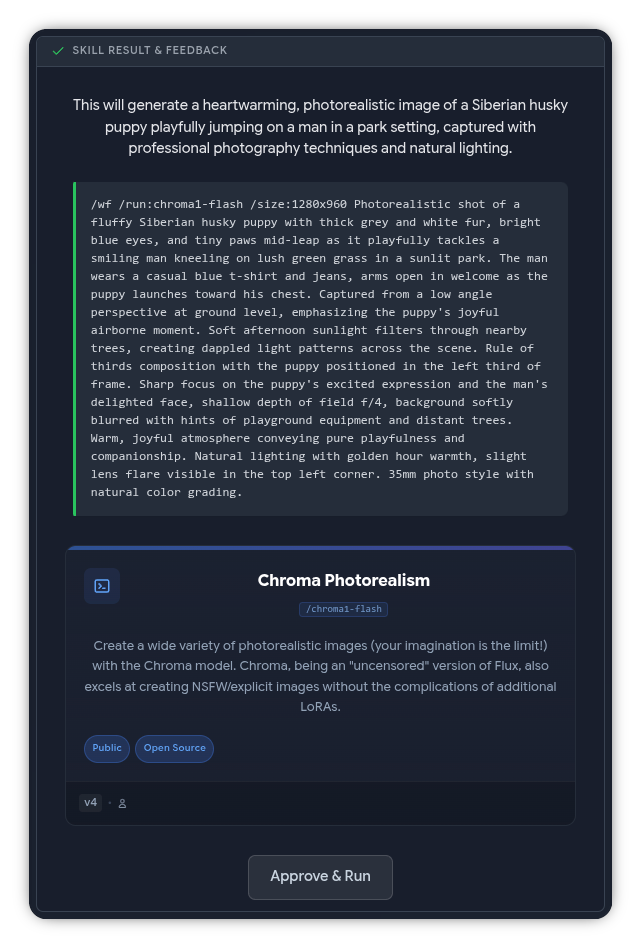
Spyglass will show the result of this in the Skill Result & Feedback area, allowing you to review the prompt (and overall command) that it generated for you. It'll also show a card of the Skill that it selected too, which is a great way to discover Skills that you may like and want to target specifically in the future:
Right below the feedback area, you can also organize the Render you're about to generate too, which lets you set a category and whether the result will be "Sensitive" (NSFW, Explicit, Shock/Horror, etc). These are just for your own personal benefit (in the Gallery area) so you don't need to touch the settings if you don't want to.
If you're happy with the resulting command that it has generated, click the Approve & Run button (you may need to scroll down slightly) which will start the actual Render using those settings (along with the optional organization settings)!
Once it is done generating, you'll see the result on the right side of the page (on desktop, for smaller screens such as mobile, you'll want to scroll down):
Now do it again! And again, and again, and again...
If you want to roll the dice again, simply click Invoke Skill again, which will then give you a new result command based on your prompt. Or, if you just want to reroll the same prompt, click Approve & Run again.
Did you know...
Renders created via Skills can still be used in Spyglass' "Remix" system from the Gallery page (click the ... button next to a Render and press Remix).
This function isn't perfect, because Renders generated via BitVector's normal tooling has very specific metadata saved to it to power this function, whereas when you create a Render via a Skill the "creation" metadata is returned in the form of a Graydient render command. This means we have to try to convert that command back to our native metadata, which can be "lossy" (some settings may not translate perfectly).
For example, right now initial media won't be applied when performing a Remix, so you'll need to reselect it via the recent renders button after applying the Remix and being taken back to the Render page.
We hope to improve this over time, but it is still a great way to iterate upon a result that you liked!
Browsing and Viewing Skills
Spyglass also allows you to browse through available Skills and bring up their details! This can be done either on the Browse page (then click the Skills tab), or if you're on the Render page clicking the Skill select button will also bring up the same view.
The list is cached and automatically periodically updated so that the experience is quick (the same occurs for Models & Workflows), but you can always force update the list by clicking the Refresh button at the top right (so long as the last refresh was more than five minutes ago):
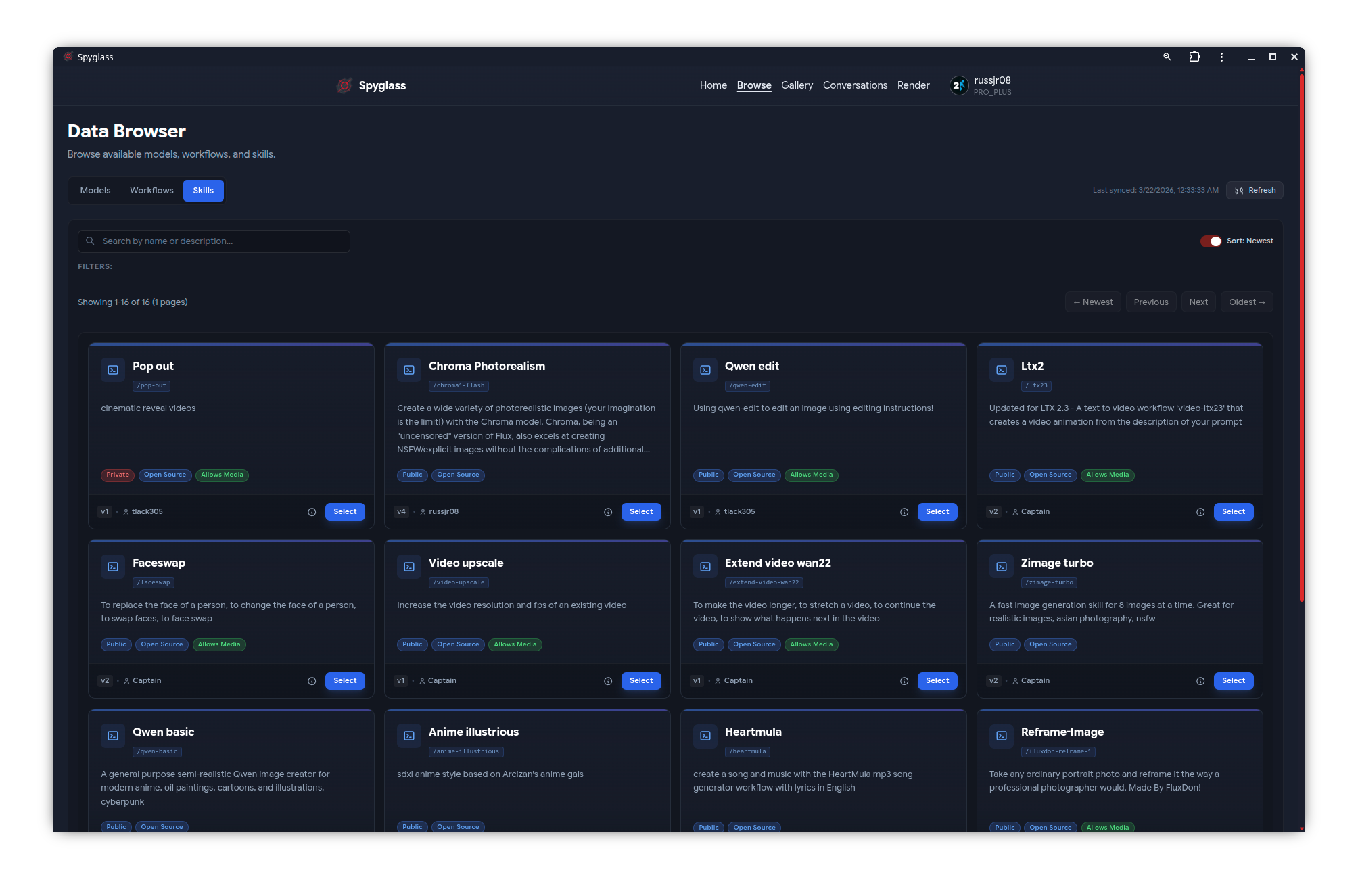
From this list, you can click on the i button to bring up the details of a Skill, such as the Skill's template if its either Open Source or you are the Skill's creator.
You can also click the Select button to start using that Skill, if you're on the "Browse" page it will automatically forward you over to the "Render" page with the Skill applied.
Closing Notes
Have fun using Skills! It is a fantastic system, and benefits all types of users (from day one users, to year five users) due to it's ease of user yet insanely flexibility.
If you have any questions about Skills, be sure to reach out to the Graydient community on Telegram. Or if you have any questions about the Skills implementation within BitVector, feel free to reach out to a BitVector Admin!